Dude where's my Veeam Powershell??
Dude where's my Veeam Powershell??

[spacer height=“20px”]
You may or may not be aware but during the installation of the Veeam Backup and Replication Console, by default the Veeam Powershell Snap-on is installed as well?
Well there’s a few components installed :
- Veeam Backup PowerShell Snap-In
- Veeam Explorer for Microsoft Active Directory
- Veeam Explorer for Microsoft Exchange
- Veeam Explorer for Oracle
- Veeam Explorer for Microsoft SQL
- Veeam Explorer for Microsoft SharePoint
- Mount server
but for this post we’re dealing with the ‘Veeam Powershell Snap-in’.
There are 2 ways to activate the Snap-in
-
Via command line :- from a powershell session/conosole type
Add-PSSnapin VeeamPSSnapin

-
Directly from the Veeam Backup and Replication console, by clicking on the 3 parallel lines in the top left of the console, and selecting ‘powershell’ from the drop down menu.
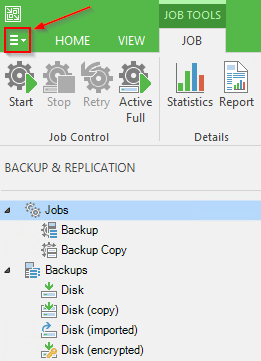
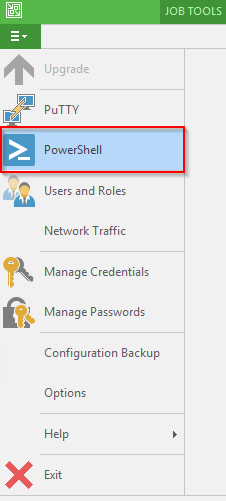
**UPDATE** In Veeam Back and Replication 9.5 , the PowerShell option is now located in the section marked ‘Console’
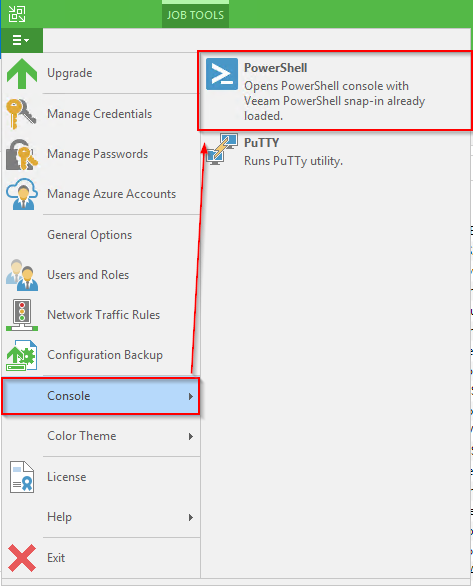
The 2nd option will open a powershell session/console and automatically load the Veeam Snap-in for you.

From this session you can connect to and control your Veeam Backup and Replication servers.
To connect to your Veeam B&R server, you would use the command
connect-VBRserver -Server
If you need to connect to your VBR server different credentials, then
connect-VBRserver -Server
-user -password
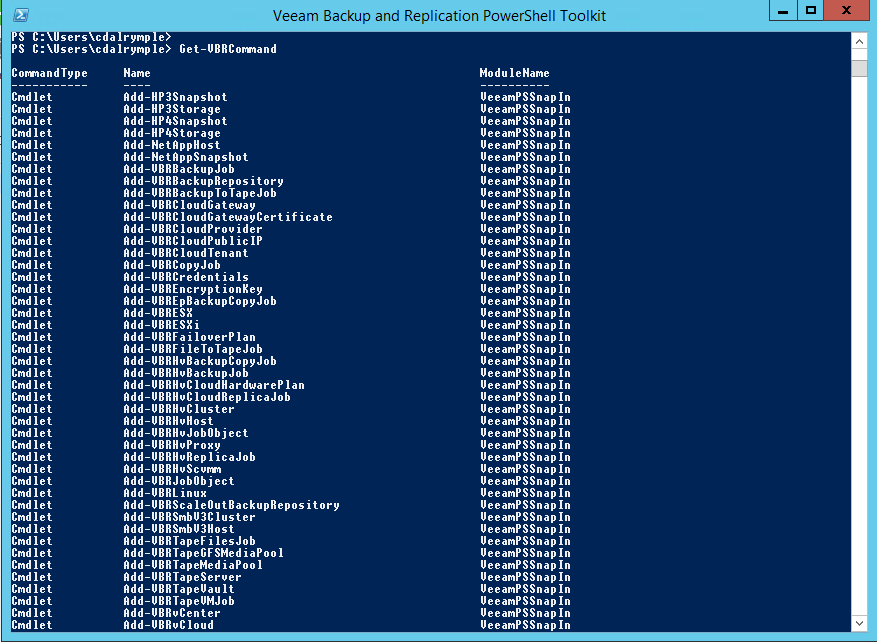
Well there are numerous options now available to you, as stated in the session header use
Get-VBRCommand
to list all available commands (be warned there’s quite a few!!) … for example
I had a backup job containing 223 VMs, and I wanted to set the application-aware processing options for all VMs to ‘try application processing, but ignore failures’. Changing this individually for 223 VMs would have been very time consuming, so a powershell script was the obvious choice.
A great place for Veeam powershell resources/help is the dedicated Veeam powershell forum https://forums.veeam.com/powershell-f26/ and I managed to find a previous post, giving details and help about setting the VSS response using powershell https://forums.veeam.com/powershell-f26/set-vss-options-for-each-machine-in-a-job-t26492.html
In this case it was a very simple script
Object in (Job | Get-VBRJobObject)) { VSSOptions = VSSOptions.IgnoreErrors = Object.SetVssOptions($VSSOptions) }
So for 5 mins of searching etc, I saved about 20-30 or so of manual work :)
why thank you very much :)